





HumanTone in your AI assistant.
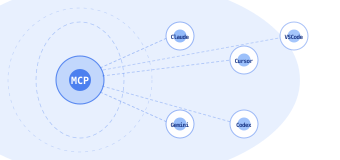
Use HumanTone right inside Claude Desktop, Cursor, VSCode, and other AI assistants. Humanize text and check AI likelihood without leaving your chat. Same credits you already use in the HumanTone web app.
Using an AI assistant? Share the file with Claude, ChatGPT, Cursor, or any AI tool. Ask it to help you integrate HumanTone for your stack.
WHY MCP
A direct shortcut from your AI chat to HumanTone.
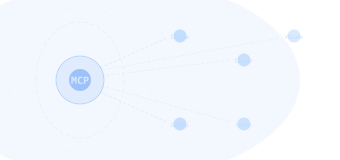
MCP means Model Context Protocol. It lets AI assistants like Claude Desktop, Cursor, and VSCode use outside tools right in your chat. Instead of switching tabs, copying text into HumanTone, and pasting the rewrite back, you can ask your assistant directly: "Use humantone to rewrite this draft." The assistant calls our service, returns the result inline, and you keep working.
Already using HumanTone in the web app? The MCP server uses your existing API key and credits, with the same humanizer engine you already trust. Nothing new to learn beyond a quick setup.
For Developers
Building something custom?
The MCP server is a thin wrapper around the same REST API. For programmatic integrations in your own app, talk to the API directly.
TOOLS
QUICK START
From zero to humanized text in two minutes.
- 1
Get your HumanTone API key at humantone.io/dashboard/settings/api. API access is included on all paid plans.
- 2
Open your AI assistant's MCP configuration file. The location depends on the client. See Configuration below for each one.
- 3
Paste the snippet for your client and replace
ht_your_api_key_herewith your real key. - 4
Restart the assistant. The HumanTone tools appear in the available tools list.
- 5
Ask the assistant: "Use humantone to rewrite this paragraph: [paste your text]."
CONFIGURATION
Connect your AI assistant.
The setup pattern is the same across all MCP compatible clients. Find your client's configuration file, paste a JSON snippet that points to humantone-mcp on npm, set your API key as an environment variable, and restart. Below are ready to paste snippets for the most common clients.
Tip: If your client is not listed here, check its documentation for "MCP server configuration". The structure is similar everywhere. A command to run, arguments, and an environment variable for your API key.
Configuration file location
- macOS:
~/Library/Application Support/Claude/claude_desktop_config.json - Windows:
%APPDATA%\Claude\claude_desktop_config.json - Linux:
~/.config/Claude/claude_desktop_config.json
{
  "mcpServers": {
    "humantone": {
      "command": "npx",
      "args": ["-y", "humantone-mcp"],
      "env": {
        "HUMANTONE_API_KEY": "ht_your_api_key_here"
      }
    }
  }
}
Replace ht_your_api_key_here with your real key. Quit Claude Desktop fully (Cmd+Q on macOS) and reopen it.
Other clients
humantone-mcp works with any MCP compatible client. The pattern is universal. A command (npx) that runs humantone-mcp, with HUMANTONE_API_KEY set in the environment. If your client (Cline, Continue.dev, Zed, Windsurf, JetBrains AI Assistant, or others) is not covered above, look for its MCP configuration documentation and follow the same shape.
HOW TO USE
Talk to your assistant naturally.
Once configured, you can use the tools in plain language. Mentioning humantone in your message helps the assistant pick the right tool reliably, especially for humanize requests where the assistant could otherwise rewrite the text itself.
Humanize a draft
Use humantone to rewrite this draft:

[paste your text]Use humantone to rewrite this with a formal tone:
[paste your text]Check AI likelihood
Use humantone's AI detector to score this paragraph:

[paste your text]
Check your account
How many HumanTone credits do I have?TIPS
Get the most out of HumanTone in your assistant.
1. Help the assistant pick the right tool.
When you want a real HumanTone rewrite (not the assistant's own paraphrase), say so explicitly. The assistant is capable of rewriting text on its own and may sometimes skip the MCP tool if the request sounds like a generic writing task.
Phrases that reliably trigger the tool.
- "Use humantone to..."
- "Run this through humantone..."
- "Pass this to humantone..."
For AI likelihood, mention "humantone" or "AI detector" in the request.
- "Use humantone's AI detector on this..."
- "Check AI likelihood with humantone..."
For account checks, the tool is invoked automatically whenever the assistant needs your specific credit balance or plan information, since that data only comes from HumanTone.
2. Useful workflows.
A few patterns that work well in practice.
Generate and humanize in one go.
Have your assistant write a draft on your topic, then pass it through humantone right after.
Write a short blog post about [your topic] and humanize it through humantone.Plan a batch.
Before humanizing a large volume, ask the assistant to check your account.
How many HumanTone credits do I have? How many articles can I humanize?
The assistant calls get_account, sees your remaining credits, and can warn you if you'll run short.
3. Best results.
Length. Humanize works best on inputs of about 100 words or longer. Very short snippets (under 50 words) can score similarly to the original because both the input and the rewrite share the same generic structure. For best results, run humanize on full paragraphs or full sections rather than single sentences.
4. Limits to remember.
- Per request word limit. 750 on Basic, 1,000 on Standard, 1,500 on Pro. Inputs must be at least 30 words.
- Credits. Humanize consumes 1 credit per 100 words. Account checks and AI likelihood checks do not consume credits.
- AI likelihood quota. 30 checks per day, shared between the HumanTone web app and any MCP or API usage. Resets at midnight UTC.
- API access. Included on all paid plans. Free trial accounts cannot use the API or MCP.
TROUBLESHOOTING
Common setup issues and how to fix them.
Tools do not appear in your assistant.
After saving the config and restarting, you do not see humantone tools in the available tool list.
- Confirm the JSON or TOML config has no syntax errors. A missing comma or quote breaks the whole file.
- Quit the client fully (Cmd+Q on macOS, full close on Windows) and reopen. A window refresh is not enough.
- Check the client's MCP log for an explicit error from
humantone-mcp. Most issues print a clear stderr line.
"Invalid API key format."
The server exits with this message immediately at startup.
- HumanTone keys are 67 characters.
ht_followed by exactly 64 hexadecimal characters. - Generate a fresh key at humantone.io/dashboard/settings/api and paste it carefully (no extra whitespace, no surrounding quotes from the dashboard).
"Your HumanTone plan does not include API access."
You see this on every tool call.
Free trial accounts cannot use the API or MCP. View paid plans at humantone.io/pricing or manage your plan at humantone.io/dashboard/settings/plan.
"Not enough HumanTone credits."
Humanize fails with this message.
Buy Extra Credits at humantone.io/dashboard/settings/credits, or wait for your monthly subscription credits to reset.
"Daily detection limit reached."
detect_ai returns this message.
The AI likelihood tool is limited to 30 checks per day per account, shared with the HumanTone web app. The error message tells you exactly when it resets. Check your remaining quota by clicking AI Detector in the web app, or wait for midnight UTC.
"bad option: -y" or another command error.
The server fails to start before the API key is even read.
Your command field probably points to node instead of npx. The -y flag belongs to npx. Change command to npx (or its absolute path). On nvm setups, the npx binary lives next to node, e.g. ~/.nvm/versions/node/v22.1.0/bin/npx.
"Cannot find module 'node:path'" or similar Node builtin error.
The server fails with an internal modules loader error referencing missing built ins like node:path, node:fs, or node:url.
This happens when an old Node version (12 or earlier) is first in your system PATH and your AI assistant invokes that old version instead of a recent one. Common with nvm setups where an outdated default was set years ago.
Two ways to fix it.
A. Install humantone-mcp globally and bypass npx entirely.
nvm use 22
npm install -g humantone-mcp
Then update your config to invoke a specific Node version directly. The simplest way. Copy this error message and your operating system to any AI assistant (Claude, ChatGPT, Gemini) and ask it to generate the correct configuration for your machine. The assistant will run the right commands, find your installed paths, and produce a working config snippet.
Or do it manually.
- Find your active Node binary path with
which nodein your terminal. - Find the global package path with
npm root -g. - Update your config to use those paths instead of
npx.
{
  "mcpServers": {
    "humantone": {
      "command": "<output of `which node`>",
      "args": ["<output of `npm root -g`>/humantone-mcp/index.js"],
      "env": {
        "HUMANTONE_API_KEY": "ht_your_api_key_here"
      }
    }
  }
}
B. Set a recent Node version as the nvm default and reboot.
nvm alias default 22
Then a full system reboot, or logout and login. After that, the simple "command": "npx" form should work.
"Cannot find module '@modelcontextprotocol/sdk/...'" or similar dependency error.
Same root cause as above. npx downloaded the package using one Node version, but a different (older) Node version is invoked to run it. Use the global install option (A) above.
Request timed out.
Humanize takes a long time and the assistant reports a timeout.
Long inputs at the extreme level can take 30 plus seconds. Try level: standard (faster) or split the text into smaller chunks of a few hundred words each.
Still stuck.
Copy the full error from your client's MCP log and paste it into your favorite AI assistant (Claude, ChatGPT, Gemini) along with your operating system and the client name. AI assistants are excellent at diagnosing these setup issues and will usually point you to the exact line of config that needs adjustment.
If you confirm a real bug, open an issue at github.com/humantone/humantone-mcp/issues with the error log, your operating system, and the client name. For account or billing questions, email help@humantone.io.
RESOURCES
Links and resources.
- MCP server package. npm · GitHub
- HumanTone Node SDK. Used internally by this server. npm · GitHub
- API documentation. For direct programmatic access. /docs/api/
- Get an API key. humantone.io/dashboard/settings/api
- Manage plan and credits. humantone.io/dashboard/settings/plan, humantone.io/dashboard/settings/credits
- Product support. help@humantone.io